

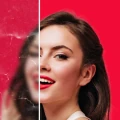
UpFoto - AI Photo Enhancer
AI Photo Team
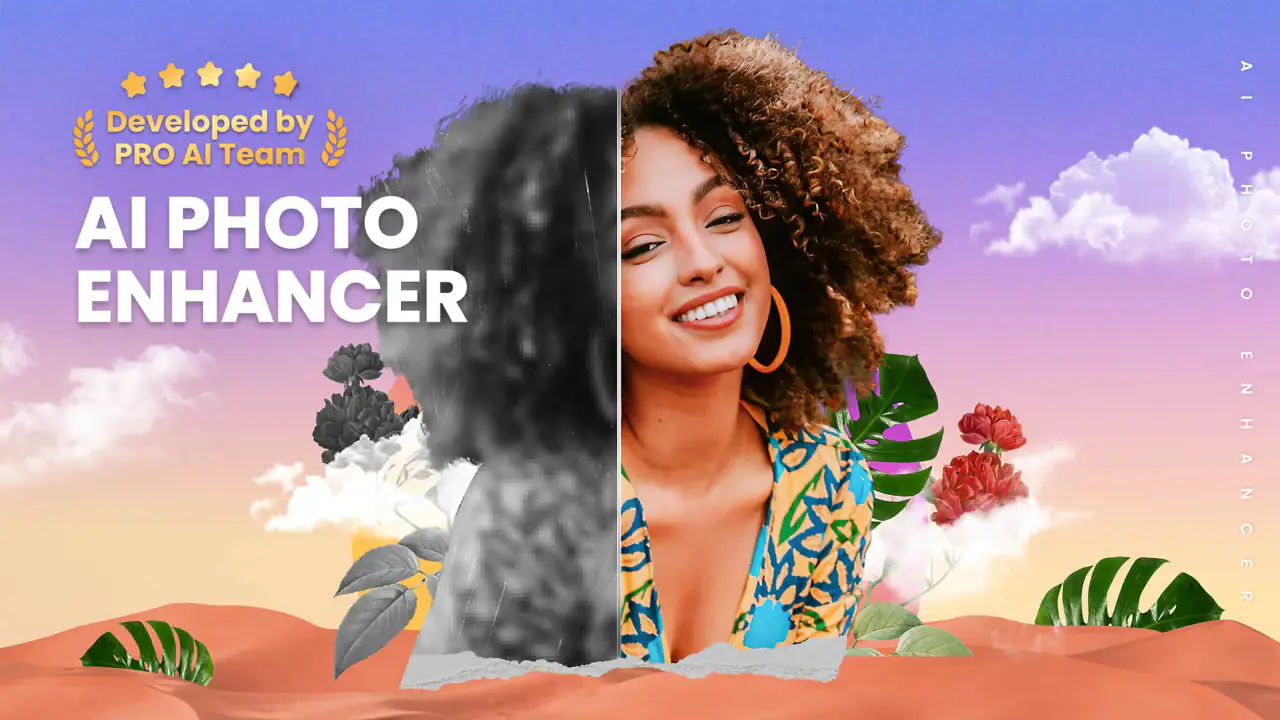
I approached UpFoto as the sort of photo tool you open when an old picture needs help quickly, rather than as a full replacement for a traditional camera editor. It is a free photography app from AI Photo Team that focuses on improving, restoring, fixing, and beautifying images, with AI-generated photo and video tools included in the same general experience. That combination makes it appealing for family pictures, social posts, scanned memories, and portraits that look softer or duller than expected.
My first impression was that its purpose is easy to understand: choose an image, apply an enhancement, and judge whether the result feels more usable. The interesting part is not simply pressing an enhancement button. The real test is deciding which original images are suitable, recognizing when an artificial-looking result has gone too far, and knowing whether a failed attempt comes from the app, the file, or the phone itself. That is where this review is most useful.
Getting past the first points of friction
Why an apparently simple edit can feel confusing
AI photo apps often create a false expectation that every image can be repaired automatically. In practice, a very small, compressed, heavily blurred, or badly damaged photo gives the system little reliable detail to work with. UpFoto can make such an image look cleaner or more defined, but improvement is not the same as recovering the exact original. When a face is partly hidden, a printed photo is covered by glare, or the source has already been enlarged several times, the result may look more like an interpretation than a faithful restoration.
Related News
How FaceApp: Perfect Face Editor is Shaping the Future of Selfies
Why UpFoto - AI Photo Enhancer is Revolutionizing Mobile Photography
I would therefore begin with a clear copy of the original and treat the first processed image as a draft. This is especially important with treasured photographs. Keep the untouched file somewhere safe, compare the enhanced version beside it, and look closely at eyes, hair, fingers, text, and patterned backgrounds. Those areas reveal unwanted changes much faster than a quick glance at the whole picture.
Another common sticking point is choosing the wrong goal. A portrait that needs a little clarity is not the same problem as a faded family print, and neither is the same as a photo intended for a social profile. The most pleasing result usually comes from matching the tool or mode to the image instead of repeatedly applying the strongest-looking option.
Latest News
Uber Eats Under Pressure: What Happens When Delivery Goes Wrong
How QR & Barcode Scanner Adapts to Android and iOS Innovations

Why Waze Navigation & Live Traffic Is Your Essential Travel Companion
CapCut Mastery: Unleash Hidden Features for Pro-Level Editing
How OS Updates Enhance Roblox Adventures
Teacher Simulator: Exam Time Turns Quick Classroom Judgments into a Repetitive Loop
Checks I would make before blaming the app
Before importing anything, I check the image in the phone’s regular gallery. If it already looks incomplete there, the issue is probably with the file rather than the enhancer. I also make sure the picture is fully available on the device instead of being only a cloud preview. A thumbnail can appear normal while the original is still waiting to download, which can interrupt an editing workflow or leave the app working from an unexpected copy.
File selection deserves more attention than it usually gets. Similar names, screenshots, edited duplicates, and messaging-app copies can make it easy to choose the wrong version. For a restoration job, I prefer the largest clean original available. For a quick post, a smaller copy may be fine, but I would not judge the quality of UpFoto using a version that has already been compressed by several services.
It is also worth checking the basic condition of the phone. A nearly full device, a weak connection when an online process is involved, or an operating system that is not supported can all make an app appear unreliable. UpFoto runs on Android from version 8.0 onward, so compatibility is a sensible first check on an older handset. If the app opens but a particular operation stalls, I would close other demanding apps, reopen the project, and try one image rather than a large batch.
Gallery
A setup routine that saves time
My preferred setup is deliberately cautious. I select one representative photograph, keep the original untouched, and process that sample before committing to a whole folder. This reveals whether the style suits the material. A sharp modern portrait, a low-light snapshot, and a scanned print can behave very differently, so a result from one category should not be treated as a promise for another.
I also decide in advance what “better” means. For a printed memory, I may value a clearer face and less distracting damage. For a social image, I may care more about a natural skin tone and a clean crop. Without that decision, it is easy to accept an image simply because it is more dramatic, even when it is less accurate.
The app is free to install, which makes this testing approach practical. It does include in-app purchases ranging from $1.99 to $99.99 per item, so I would pay attention to any purchase screen and understand what is being offered before confirming anything. The free starting point is useful for deciding whether the editing style fits your needs, but “free” should not be read as a guarantee that every possible treatment is included without charge.
Recovering a workflow after something goes wrong
When an edit fails, I avoid repeating the same action immediately. First I return to the original image and try a smaller, simpler test. If that works, the problem may be related to the particular file, its size, or the previous edit rather than the entire app. If the same image repeatedly causes trouble, I create a fresh copy through the phone’s gallery and try that copy once. This can remove odd file-handling issues without changing the picture itself.
If the preview looks promising but the saved result does not, I check the gallery for a newly created file rather than assuming the original was replaced. Clear filenames and a temporary test folder make this easier. I would not delete the source until I have opened the exported image independently and confirmed that it is the version I want.
For a stalled process, the safest general sequence is simple: stop the current attempt, close and reopen the app, confirm that the source image is available locally, and try a single file. Reinstalling should be a later step, not the first reaction, because it can disrupt access to work that has not been saved. If an update is offered for the installed version, applying it may also be sensible, but I would still preserve originals before making major changes.
Using enhancement without losing the photograph’s character
The strongest-looking result is not automatically the best one. On a face, excessive smoothing can remove the small features that make the person recognizable. On an old print, aggressive cleanup can erase texture that belongs to the photograph. My practical rule is to zoom in for defects, then zoom out again to judge whether the whole image still feels believable.
I pay particular attention to repeated patterns and straight lines. Fabric, fences, hair strands, and small printed lettering can expose invented detail or uneven processing. If those areas become distracting, I would rather keep a slightly softer but credible image than use a sharper version that looks synthetic.
A useful workflow is to make separate versions for separate purposes. One can preserve a natural appearance for archiving, while another can be more polished for sharing. This avoids forcing one edit to satisfy two conflicting goals. It also makes it easier to explain to a family member why an old photo looks clearer without pretending that every missing detail has truly been recovered.
Where the app helps in everyday life
Imagine finding a faded picture of a relative while organizing a drawer. The image is recognizable, but the face is soft and the colors are tired. I would photograph or scan it as cleanly as possible, keep that capture untouched, and use UpFoto on a duplicate. The useful result would be a version that is easier to view and share, not necessarily a museum-quality restoration. I would compare the eyes and mouth carefully, because those are the places where an AI interpretation can change the person’s expression.
The same approach works for a small profile image that needs a little more presence, a group photo that looks flat, or an older snapshot that is difficult to see on a modern screen. In these cases, convenience matters more than elaborate manual control. I can test an enhancement quickly, decide whether the image benefits, and move on without building a complicated editing project.
UpFoto is also a reasonable option for someone who wants creative AI photo or video work alongside basic improvement tools. That broader focus may suit casual users who prefer one accessible app instead of learning several specialist editors. However, people who need precise curves, masks, layers, color profiles, or detailed retouching will likely find a conventional editing application more appropriate.
When the app is not the real cause
Not every disappointing result is an application failure. A blurred photograph may simply contain too little information. A dark image may have noise that becomes more visible after sharpening. A screenshot may include compression artifacts that no enhancer can remove cleanly. If the source is poor, changing apps can produce a different interpretation, but it cannot guarantee an authentic recovery.
Lighting and capture technique matter too. When digitizing a physical print, reflections, tilted angles, and uneven illumination can create problems before UpFoto ever sees the file. I would first improve the capture: use even light, keep the camera parallel to the print, avoid glare, and make sure the entire picture is in focus. A better source often helps more than repeatedly processing a bad one.
Storage and connectivity can also be misleading. If only one operation fails while ordinary gallery viewing works, the issue may be tied to that image or process. If several apps are slow, the phone may be under pressure. If the problem appears only when the device is offline, connection availability may be relevant. Separating these possibilities prevents unnecessary blame and makes troubleshooting much less frustrating.
How it compares with familiar alternatives
Compared with a standard gallery editor, UpFoto is more attractive when the main task is automated improvement rather than manual adjustment. A gallery editor is often quicker for cropping, rotating, or making a small brightness change, while an AI-focused tool is more interesting when the source needs reconstruction, cleanup, or a stronger visual lift.
Compared with a professional photo editor, the appeal is simplicity. I do not need to understand layers or build a detailed mask just to test whether an old portrait can look clearer. The trade-off is control: a specialist editor gives me more say over exactly what changes, while UpFoto is more dependent on its interpretation of the image.
Compared with a dedicated restoration service, the app is convenient for private experiments and everyday sharing. A specialist may be preferable for irreplaceable archival work where color accuracy and faithful detail matter more than speed. I would use UpFoto to explore possibilities and create a practical viewing copy, then reserve professional restoration for an image whose historical or emotional value justifies that extra care.
Who should try it, and who should skip it
I think UpFoto suits people who want a straightforward way to improve imperfect pictures without learning a full editing system. It is particularly useful for casual photographers, families digitizing old memories, and users who want enhancement and creative AI tools in one photography app. Its age rating is Everyone, so it is positioned for a broad audience rather than a specialist professional niche.
I would be more cautious if you need predictable, pixel-level results or if you are processing sensitive work where invented detail would be unacceptable. It may also be a poor fit for someone who dislikes purchase prompts or expects every advanced option to be included in a free app. In those cases, a manual editor or a focused restoration workflow may feel more transparent.
My practical verdict after testing the workflow
UpFoto is best understood as a convenient AI-assisted photo workshop, not a magic repair button. Its strengths are accessibility, a clear everyday purpose, and the ability to approach restoration, enhancement, beautifying, and creative image work from one place. The developer, AI Photo Team, has built an app that has reached over 100 million installs and holds a 4.5 average from around 1.4 million ratings, which suggests that its broad, quick-result approach resonates with many people.
Those figures do not remove the need for judgment. I would preserve originals, test one image first, watch for artificial facial detail, and distinguish a file or phone problem from an app problem. The current version is 1.3.8.109, and the app was released on May 11, 2022, so checking compatibility and keeping a sensible backup habit remains worthwhile on older devices.
My recommendation is positive for casual restoration and quick visual improvement, with realistic expectations. If you want to rescue a family snapshot for sharing, make a soft portrait easier to view, or experiment with AI photo and video creation, the free entry point makes UpFoto worth trying. If your priority is exact restoration, extensive manual control, or a completely predictable result, I would choose a more specialized alternative. Used as a careful first pass rather than an unquestioned final authority, it can be genuinely helpful.
FAQs for UpFoto - AI Photo Enhancer
What is UpFoto - AI Photo Enhancer and how does it work?
UpFoto is a cutting-edge photo enhancement app that utilizes artificial intelligence to improve the quality of your photos. It automatically adjusts brightness, contrast, and sharpness, and can even restore old, faded images. The AI algorithms analyze each photo to provide personalized enhancements, making your pictures look more vibrant and professional.
Is UpFoto - AI Photo Enhancer free to use?
UpFoto offers a free version with basic features, but to access advanced enhancements and additional tools, a subscription is required. The subscription model provides users with a range of premium features that are regularly updated, ensuring continuous improvement and the latest AI technology.
Can UpFoto enhance low-resolution images effectively?
Yes, UpFoto is designed to enhance low-resolution images. The AI algorithms upscale the images, adding details and improving clarity. However, while the app significantly enhances quality, results can vary based on the original image's resolution and quality.
Is UpFoto available for both Android and iOS devices?
UpFoto is available for download on both Android and iOS platforms. The app is optimized for a wide range of devices, ensuring smooth performance and a user-friendly interface regardless of your operating system. Simply visit the Google Play Store or Apple App Store to install.
How secure is my data when using UpFoto?
UpFoto prioritizes user privacy and data security. The app uses encryption to protect your photos and personal information. Additionally, it does not store your photos on external servers without your consent, ensuring that your data remains private and secure throughout the enhancement process.
Pros
- Enhances photo quality effectively.
- User-friendly interface for quick edits.
- Supports batch processing.
- Offers various filters and effects.
- Fast processing with AI technology.
Cons
- Limited free features available.
- Requires internet for AI functions.
- Occasional lag with large photos.
- In-app purchases for premium tools.
- No option for manual adjustments.


